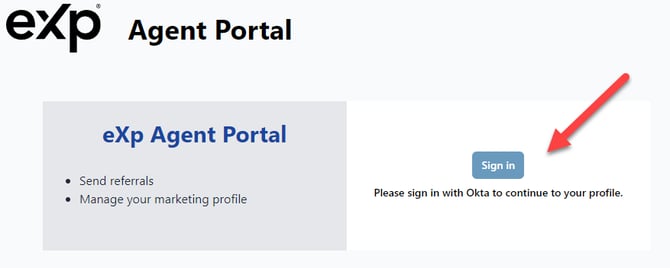
You can edit your Agent Directory Profile from the Agent Portal using this link: https://agents.exprealty.com/
Click the "Sign in" button and sign in with your eXp Passport credentials:
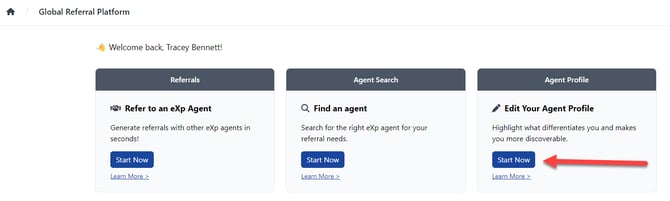
Once logged in, select "Start Now" under the "Edit your Agent Profile" section:
NOTE: This option may not be available until up to 3 business days after your onboarding date.
Here, you will have many options to edit your Directory Profile. You can use the reference image below for information on what each section allows you to do:
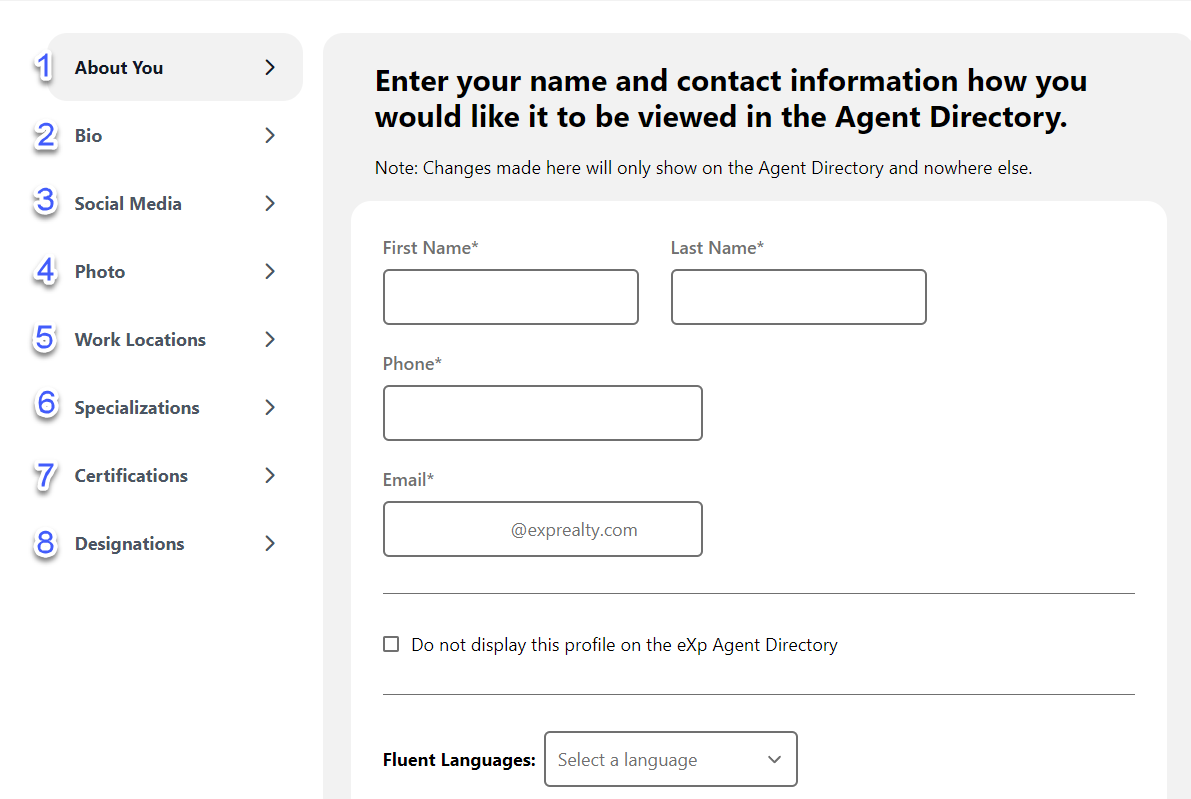
1. About You: Here you will enter your basic information to be searchable in the Agent Directory and Referral Portal such as your First and Last Name, Phone Number, Email Address, and Languages. Please be sure to click the "Save Updates" button after making your changes.
2. Bio: Here you will find a text field where you can enter a short biographical explanation of who you are and what you'd like people to know about you when they visit your profile. Please be sure to click the "Save Updates" button after making your changes.
3. Social Media: This is where you can add links to your social media pages that will display on your profile. Please be sure to click the "Save Updates" button after making your changes.
4. Photo: The photo you upload here will display on your Directory profile, Referral Portal profile, Enterprise profile, My eXp profile, and on the Production Leaderboard.
5. Work Locations: Here you can add and edit the locations that you service. The location listed directly under your name in the directory will be determined by the one city you have selected as "My Primary City". The other locations will show in your profile.
3. Social Media: This is where you can add links to your social media pages that will display on your profile. Please be sure to click the "Save Updates" button after making your changes.
4. Photo: The photo you upload here will display on your Directory profile, Referral Portal profile, Enterprise profile, My eXp profile, and on the Production Leaderboard.
5. Work Locations: Here you can add and edit the locations that you service. The location listed directly under your name in the directory will be determined by the one city you have selected as "My Primary City". The other locations will show in your profile.
6. Specializations: Here, you can select the options you would like to list as your Specializations. Please be sure to click the "Save Updates" button after making your changes.
7. Certifications: Here you can select any listed certifications you have obtained in order to have them displayed in your profile. Please be sure to click the "Save Updates" button after making your changes.
8. Designations: Here you can select any Designations that you'd like displayed on your profile. Please be sure to click the "Save Updates" button after making your changes.
7. Certifications: Here you can select any listed certifications you have obtained in order to have them displayed in your profile. Please be sure to click the "Save Updates" button after making your changes.
8. Designations: Here you can select any Designations that you'd like displayed on your profile. Please be sure to click the "Save Updates" button after making your changes.
If you have any trouble, please reach out to support@exprealty.net or visit the Tech Outpost using this link: https://exp.world/techsupport-agent